

Updated: July 30, 2026

By Matic BončinaFounder
✓Proofread & verified
/home/<username>) and lets you do everything you’d normally do over FTP, without installing anything.
Open it from cPanel home → Files → File Manager.
cPanel home → Files → File Manager
What’s on the page
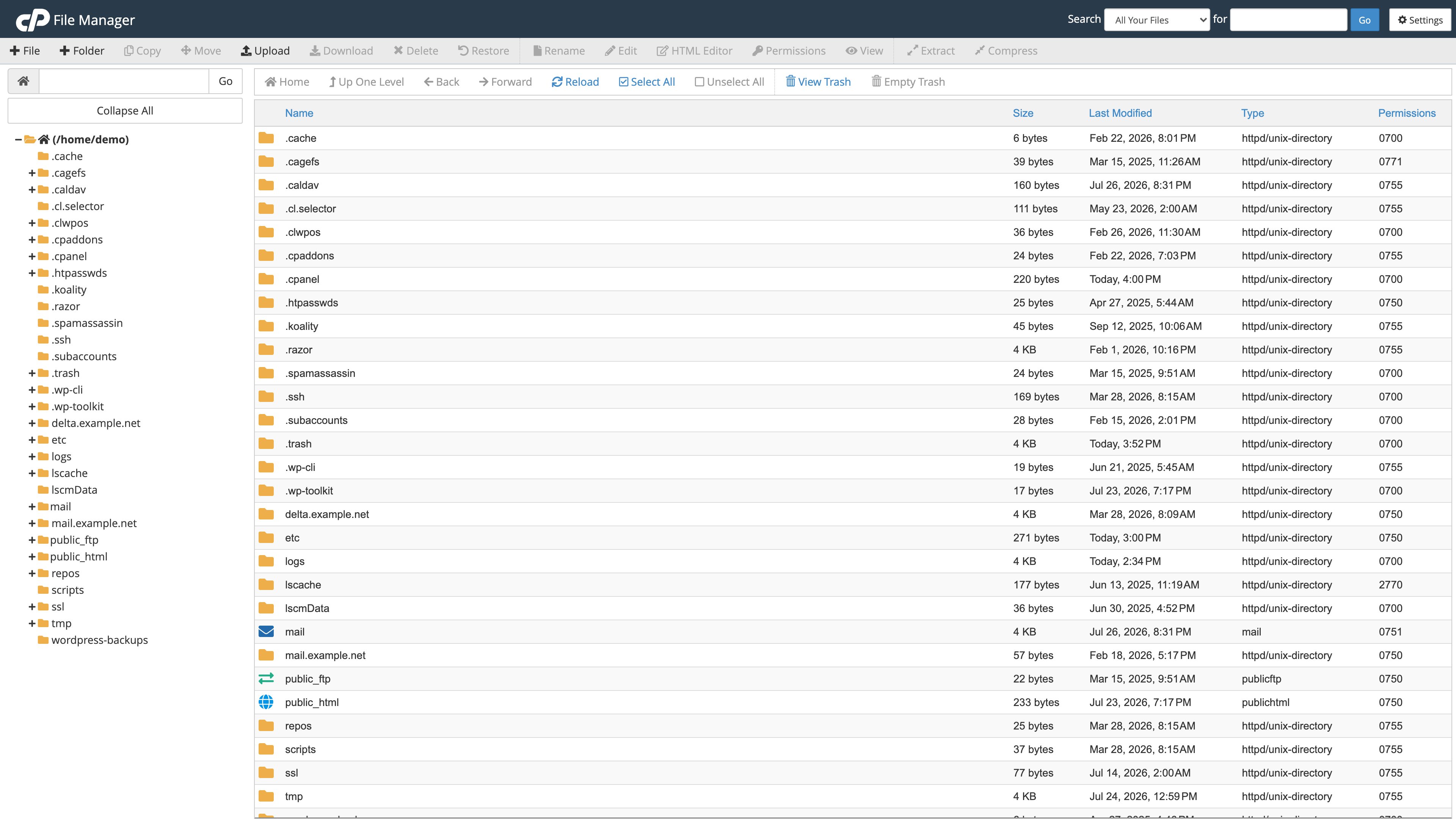
- Top toolbar with the actions you take on selected files: + File, + Folder, Copy, Move, Upload, Download, Delete, Restore, Rename, Edit, HTML Editor, Permissions, View, Extract, Compress
- Navigation row just below it: Home, Up One Level, Back, Forward, Reload, Select All, Unselect All, View Trash, Empty Trash
- Search in the top right, scoped to all your files, only
public_html, or the current directory - Left sidebar with the directory tree of your account
- Right pane with the contents of the current folder, showing Name, Size, Last Modified, Type, and Permissions
What you can do
Tips
- Hidden files. cPanel hides dotfiles by default. Click Settings in the top right and tick Show Hidden Files (dotfiles) to see
.htaccess,.env, and similar. - Trash recovery. Deletes go to
.trashfirst, not straight to oblivion. That’s a folder in your home directory, so the files keep taking up your disk space until you clear it. Recover them from View Trash. Empty it once you’re sure. - Editing config files. For a single
.htaccessor.envline change, File Manager is faster than SSH or FTP. - Large uploads. For a big transfer or a lot of files at once, Web Disk mounts your account as a network drive so you can copy files natively from Finder or File Explorer.
Need a hand?
Open a ticket
Best for anything that needs an account check or a config change on our end.
Live chat
Faster for quick questions during business hours.